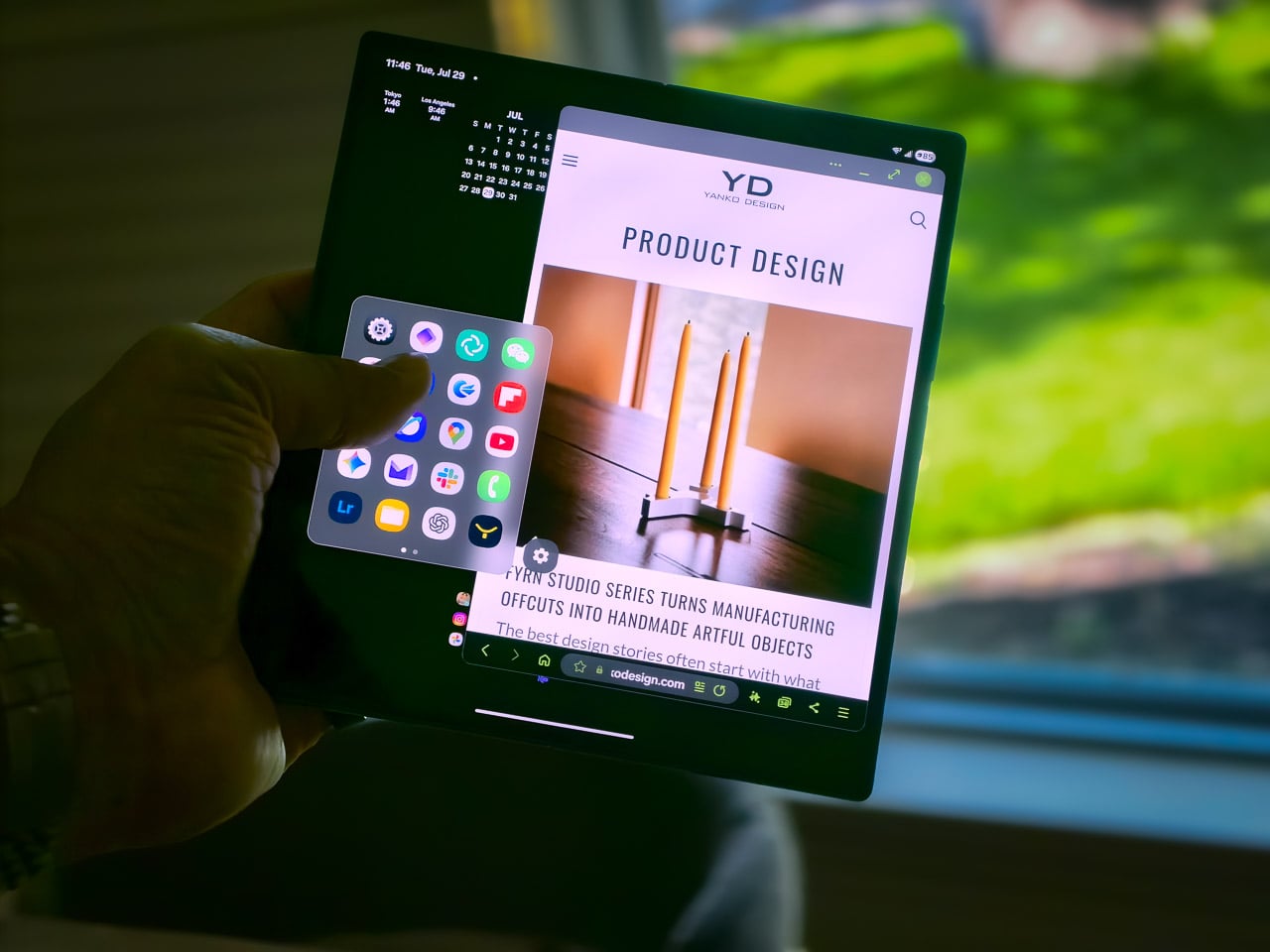
My Z Fold7’s home screen used to look like a digital disaster zone. Apps everywhere, widgets fighting for space, and my thumb constantly doing gymnastics just to reach basic controls. Then I discovered something that completely changed how I interact with my foldable device.
Designer: Samsung
What if your phone could respond to your touch like magic, with everything you need appearing exactly when and where you want it? That’s what I’ve achieved using Samsung’s ecosystem on my Z Fold7, and I’m testing the same setup on my S25 Ultra. The transformation is incredible. Your display becomes this clean, responsive canvas that adapts to your gestures instead of cluttering your view with permanent shortcuts. I’m going to walk you through exactly how I set this up, because once you experience gesture navigation done right, traditional icon grids will feel ancient.
Why I Ditched Icons for Gestures
The moment I opened Good Lock’s One Hand Operation+ module, I knew I was onto something special. Instead of cramming my beautiful Z Fold7 screens with app icons, I now have this gorgeous, minimalist interface that shows just what I need. A clean calendar view with world clocks for my work across time zones.
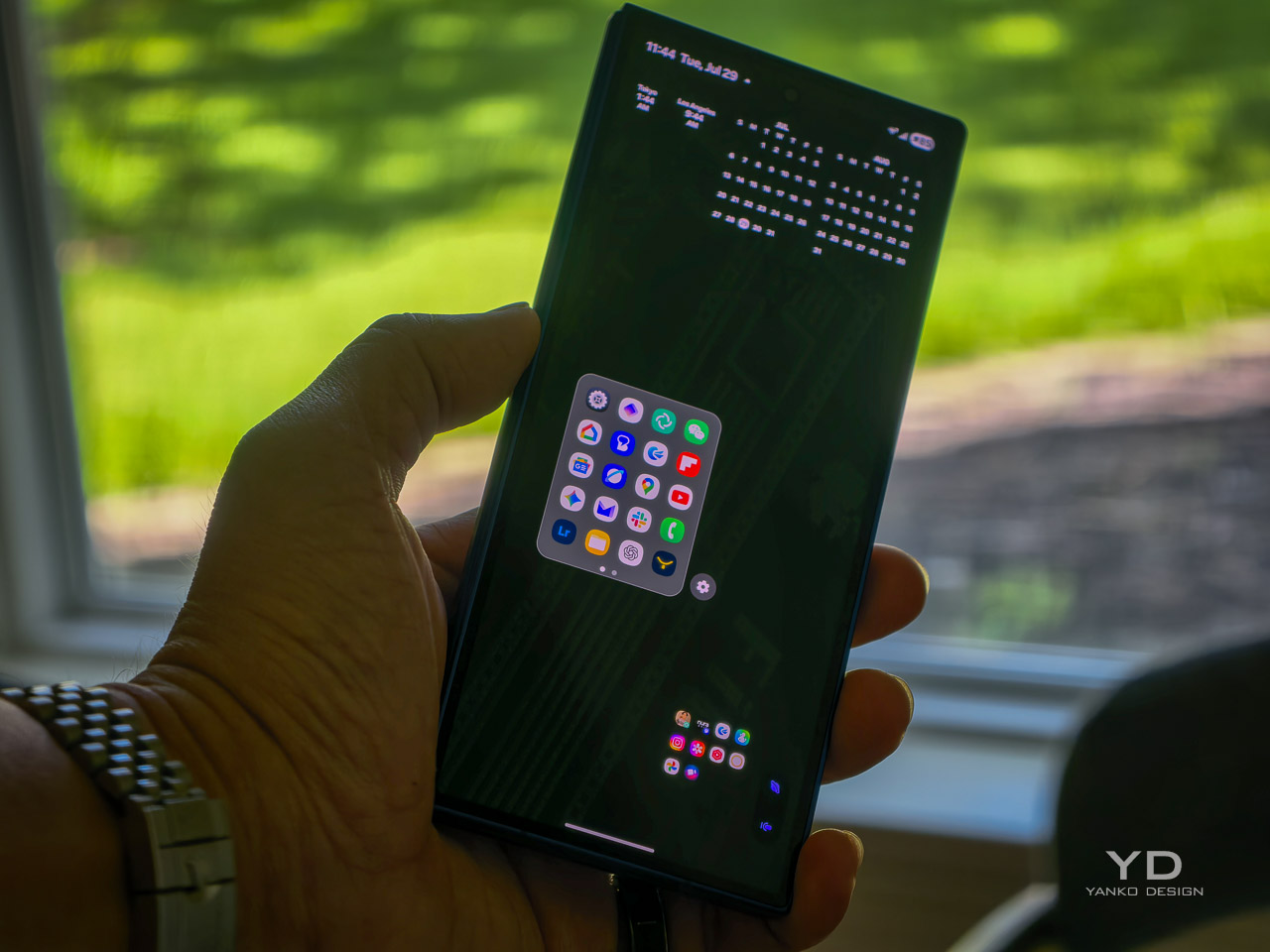
Foldable devices are actually perfect for gesture navigation because you’re constantly switching between the cover display and the main screen. Having consistent gesture controls that work identically on both displays creates this seamless flow that makes the Z Fold7 feel like one cohesive device rather than two separate screens stuck together.
The gesture handles are completely invisible until I need them. My Z Fold7’s gorgeous displays stay uncluttered, but I can summon any app, setting, or control with simple edge swipes. The system recognizes different swipe lengths and directions, so one edge can handle multiple functions without any confusion.
Everything appears contextually as floating panels. Need to adjust brightness? A quick gesture brings up controls right where my thumb is. Want to switch apps? Another swipe shows my running applications in an elegant overlay. It feels less like using a phone and more like conducting a digital orchestra.
Setting Up Your Gesture Paradise
Getting this system running on your Z Fold7 starts with downloading Good Lock from the Galaxy Store . Once you have that installed, grab the One Hand Operation+ module. This is where all the magic happens. 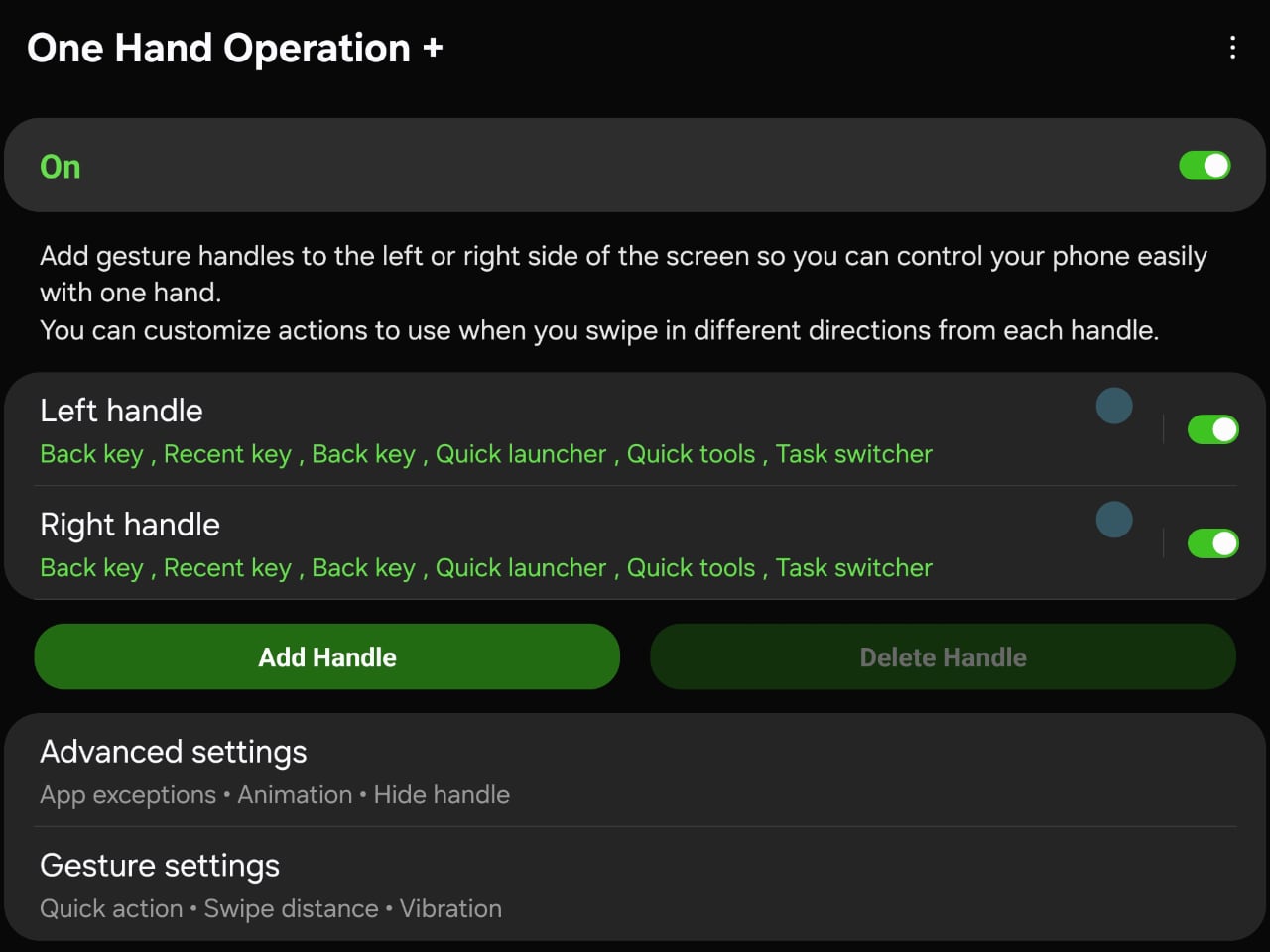
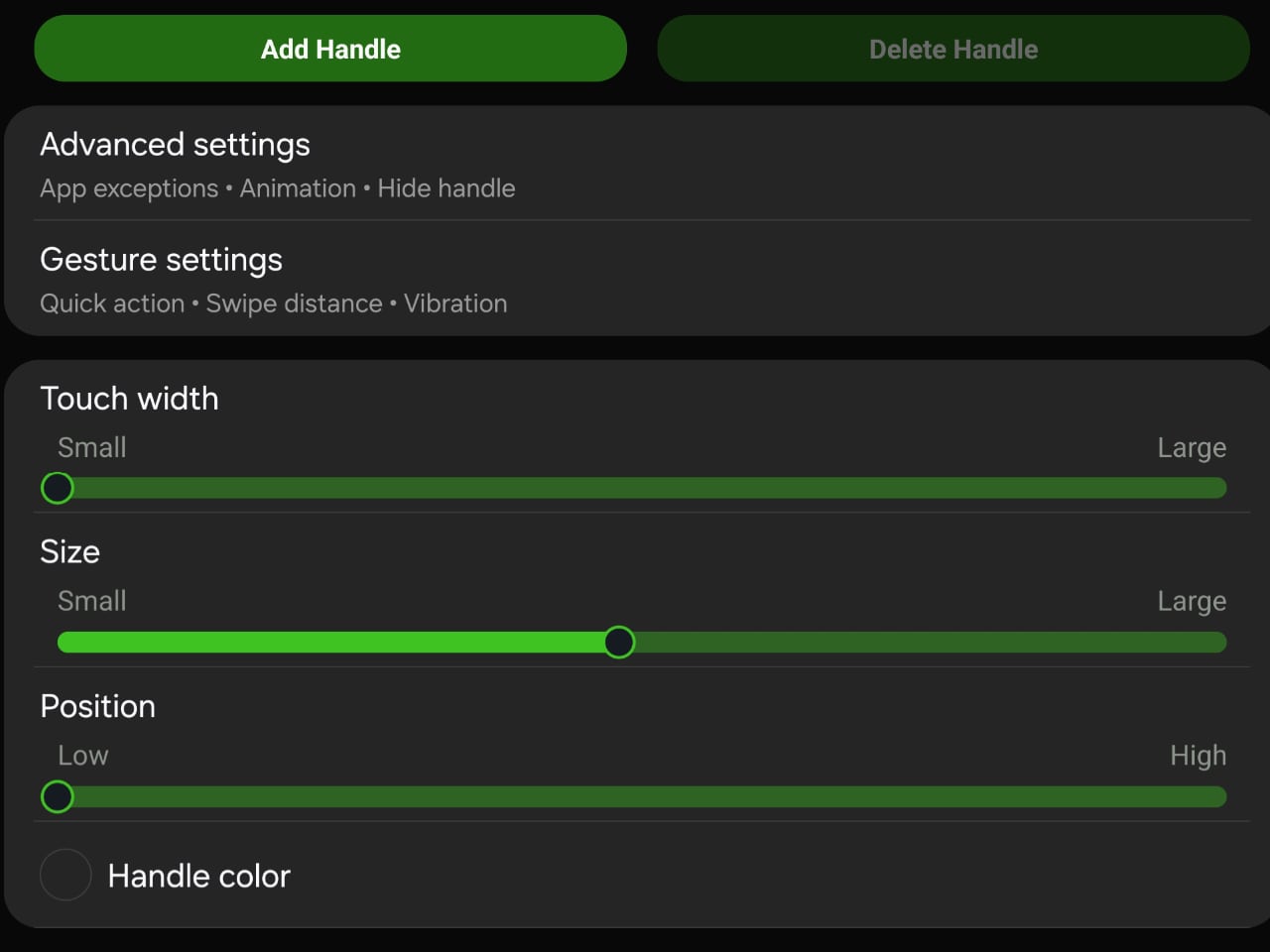
First, configure your left and right edge handles. I keep mine positioned about halfway up the screen because that’s where my thumb naturally rests when holding the Z Fold7 in either folded or unfolded mode. The handle width is crucial. Too narrow and you’ll miss gestures, too wide and you’ll trigger them accidentally while typing.
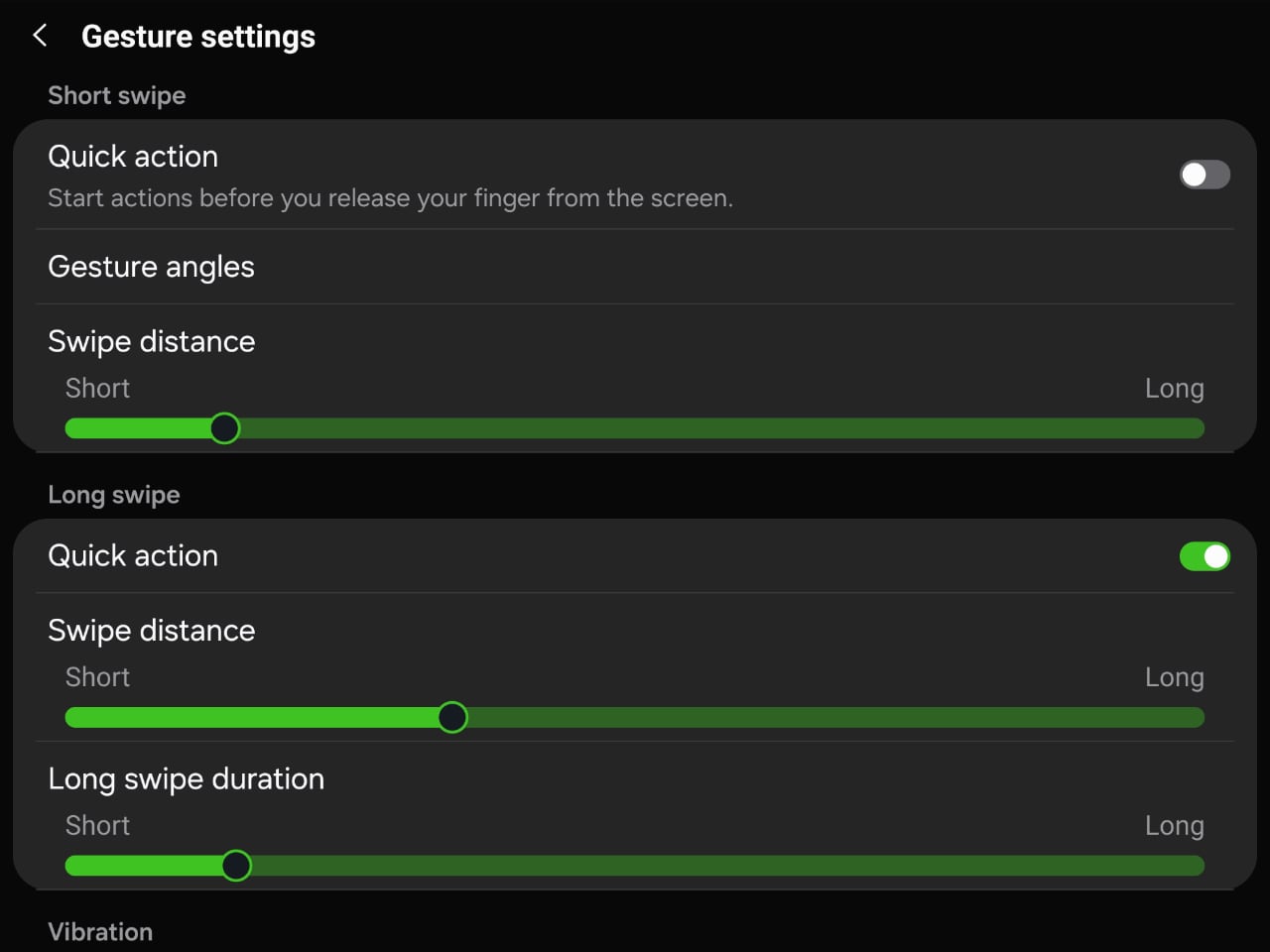
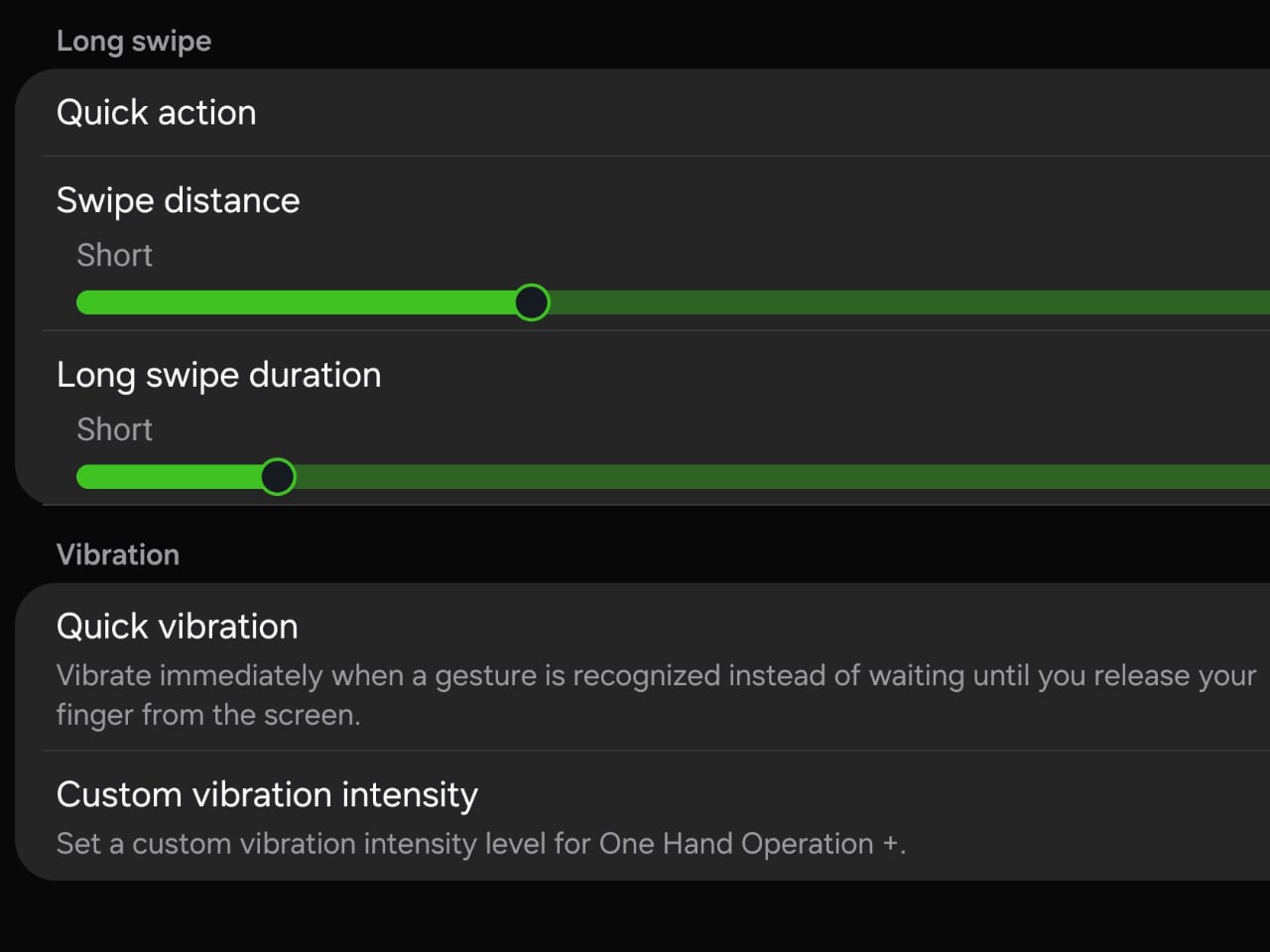
Setting swipe distance to about 60% of the slider works perfectly for the Z Fold7’s screen proportions. This gives you enough travel to feel deliberate without requiring awkward finger stretches. The quick action setting is a game changer. It starts executing your gesture the moment the system recognizes it, rather than waiting for you to lift your finger.
Vibration feedback is personal preference, but I keep it enabled with medium intensity. The tactile response helps you develop muscle memory for different gesture patterns. The curved animation option looks gorgeous on the Z Fold7’s high quality displays and makes interactions feel more organic.
My Daily Gesture Setup and Real World Usage
After a couple of weeks of daily use, gesture navigation has become second nature on my Z Fold7. The transition period took about two weeks of consistent use, but now I find myself trying to use gestures on other people’s phones out of habit.
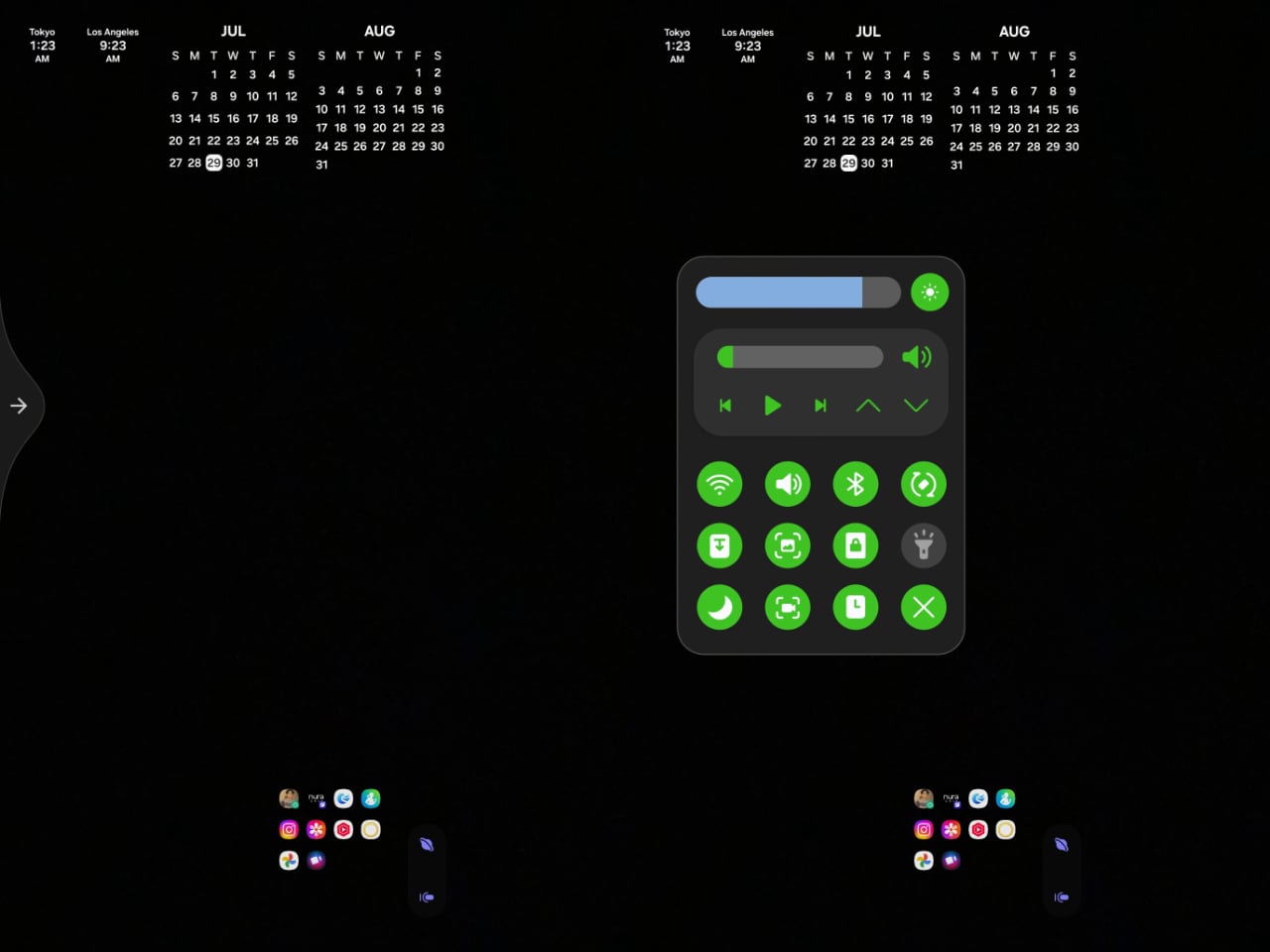
The ergonomic advantages become obvious during extended one handed use. Traditional navigation requires awkward thumb stretches or two handed operation for many tasks. With gestures, everything stays within comfortable reach regardless of how you’re holding the device.
This is particularly important when using the Z Fold7 in its folded state. The cover display is tall and narrow, making top screen elements difficult to reach with one hand. Gesture navigation brings controls to your thumb rather than forcing your thumb to chase controls around the screen.
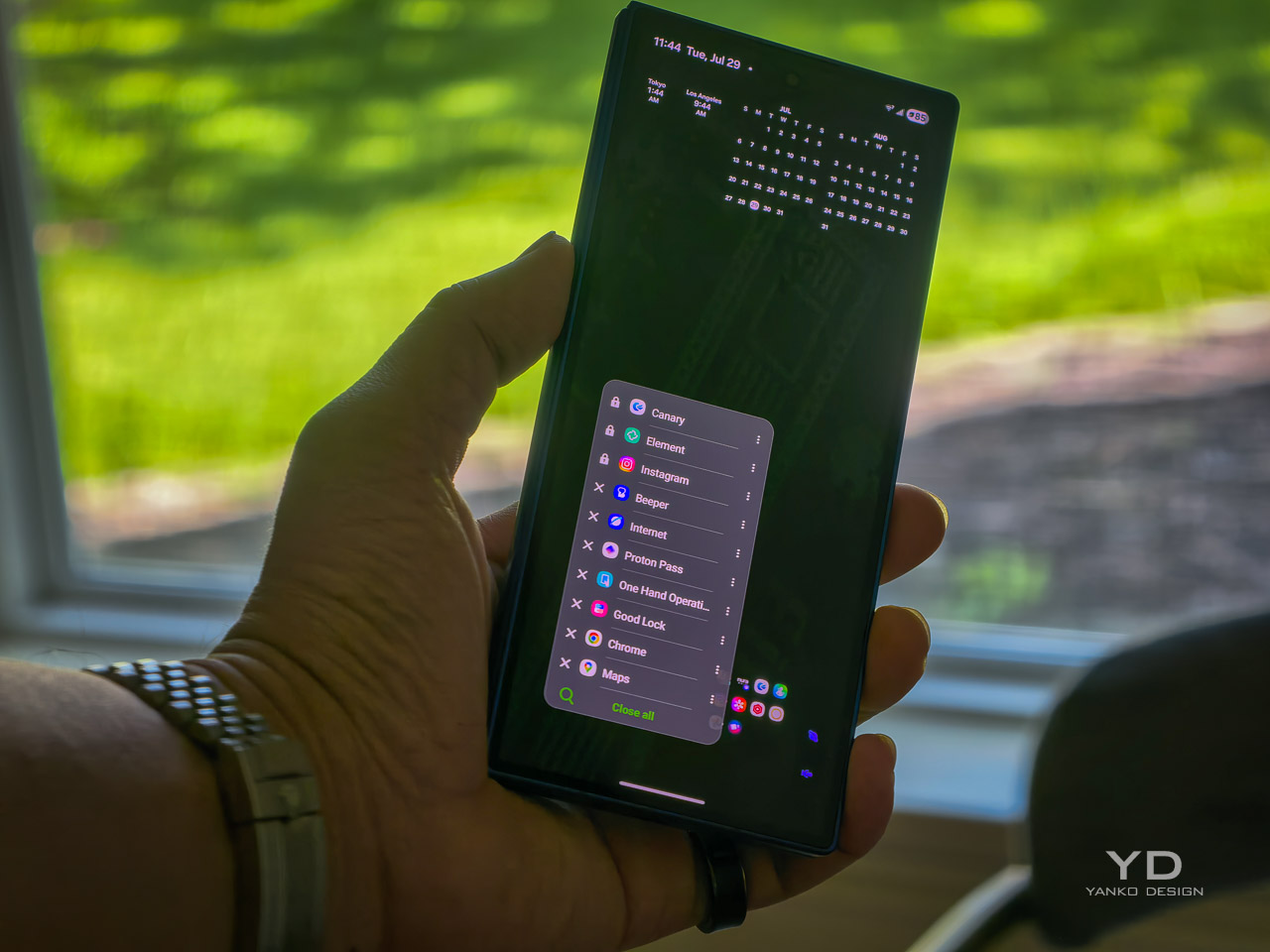
The handle positioning system adapts to different grip styles beautifully. Whether you prefer holding your Z Fold7 high in your palm or lower for better stability, you can position gesture zones exactly where your thumb naturally rests. I’ve configured mine differently for portrait and landscape orientations to account for how my grip changes.
Keyboard integration shows Samsung’s attention to detail. When typing on either display, gesture handles automatically move above the keyboard area to prevent accidental activation while maintaining full functionality.
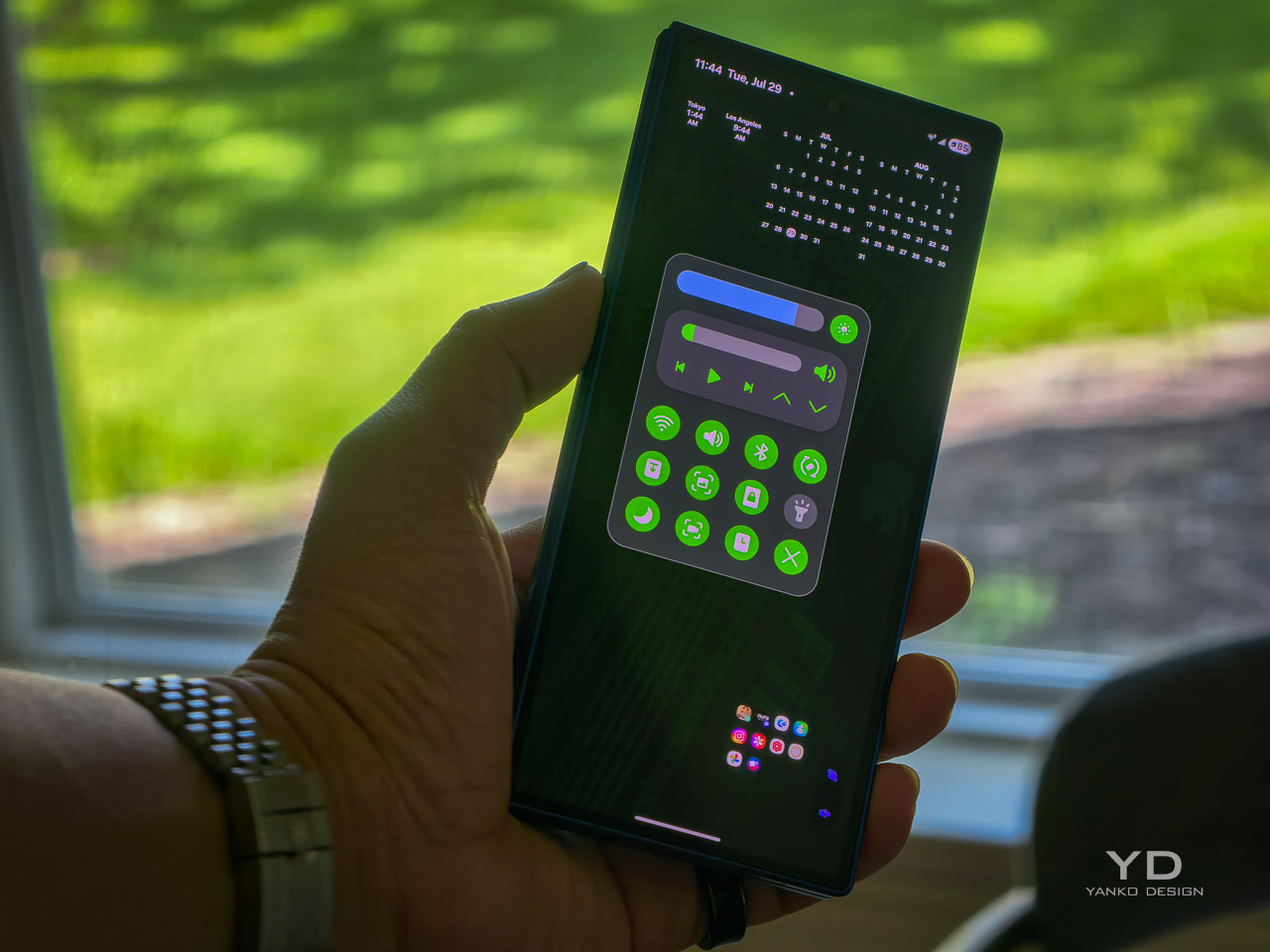
The consistency between cover and main displays is what makes this setup truly special for foldable users. The same gesture patterns work whether your Z Fold7 is closed or opened, creating a unified interaction model that eliminates the jarring experience of switching between different navigation paradigms.
I particularly love using gestures during video calls on the main display. I can adjust volume, toggle mute, or switch apps without covering the camera or disrupting the call interface. The floating panels appear and disappear without interfering with the video feed, maintaining a professional appearance during work calls.
The post first appeared on .
Related Posts